
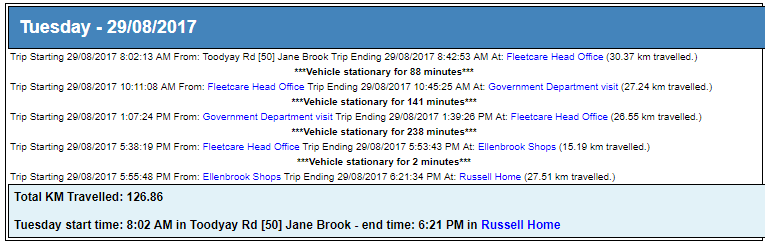
Points of interest (or POI's) are known locations that you can enter into the system - that are considered by the GPS tracking system for reporting and FBT logbook purposes.
By using a POI the system will substitute the street address with the location name in reporting, for example 'Head office' rather than '57 Buckingham Drive, Wangara'
Viewing POI's
To view your current points of interest, simply click the 'enable/disable POI's' button at the top of the Map window.

Adding new POI
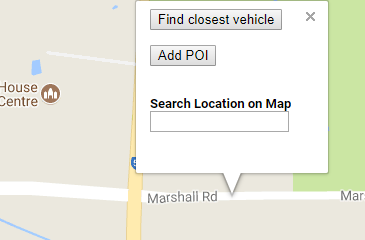
Adding a new POI to the map is done via the right click menu on the live tracking screen. Simply right click on the location you wish to add the POI, and click the 'Add POI' menu item.
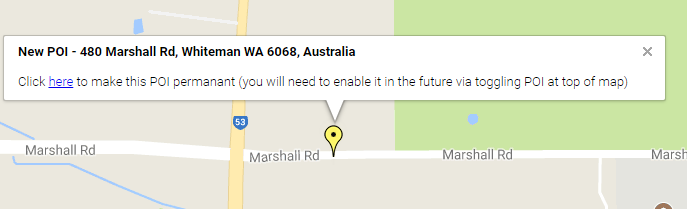
New POI's are not yet permanent. If you are happy with the location of the POI simply slick on the new push-pin marker, and click 'Make POI permanent' to commit the POI to your account
Editing POI's
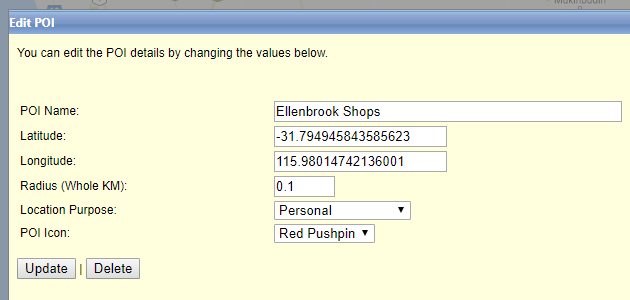
To edit POI's you will first need to enable the points of interests so you can see the markers on the map. To edit a specific marker simply click on the marker, and click the 'edit' button.

Once in edit mode, you will have the ability to rename the marker, change the marker color, adjust the purpose of the marker location (business, personal, commuting) and change the radius of the POI's reach.
Deleting POI's
To delete a POI you will first need to go into edit mode, as per the above step and simply click 'Delete' at the bottom left. Only account administrators can view the 'Delete' option against POI's. You will be prompted to confirm the delete before the POI is permanently removed from your map.
Comments
0 comments
Please sign in to leave a comment.